Getting Started with Picol Signal Bot
- You will need a Picol account to execute the trades. Create Your Free Picol Account Today!
- You will need a TradingView account with at least an Essential subscription for Alert and Webhook URL access.
- Desktop browser to access the TradingView Pinescript Editor and Signal bot configuration page.
Step 1. Configuring the “Signal” in Picol
1. Log in to your Picol account
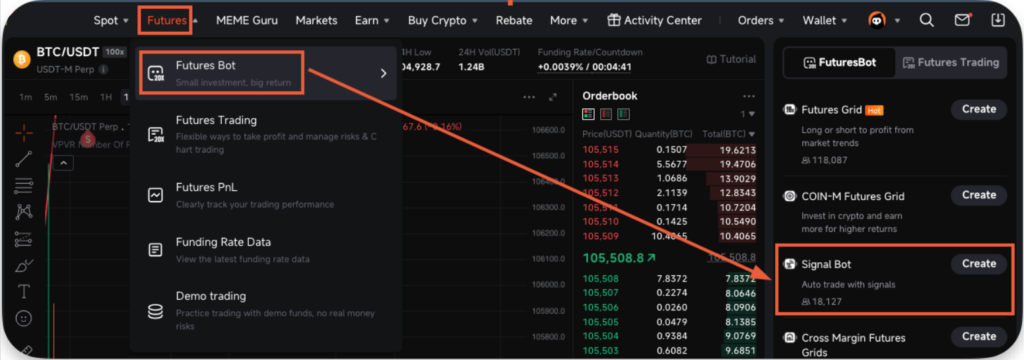
2. Navigate to Futures → Futures Bot → Signal Bot
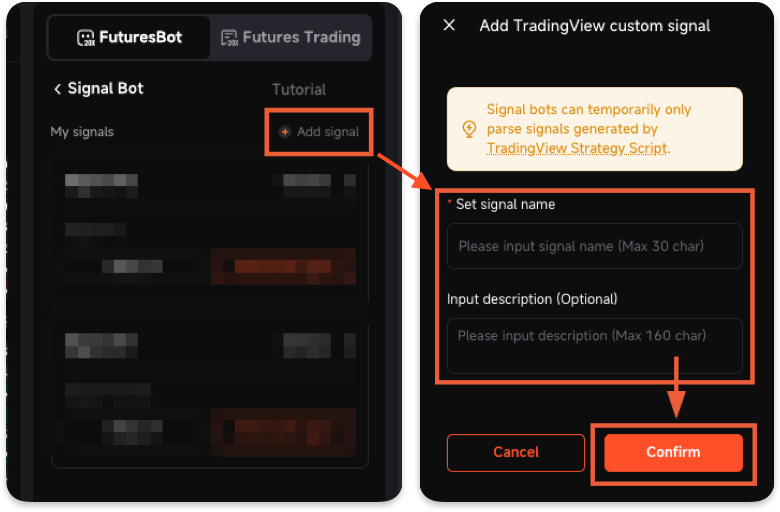
3. Click on the “Add signal” button and set the name and description for this signal and then click “Confirm”
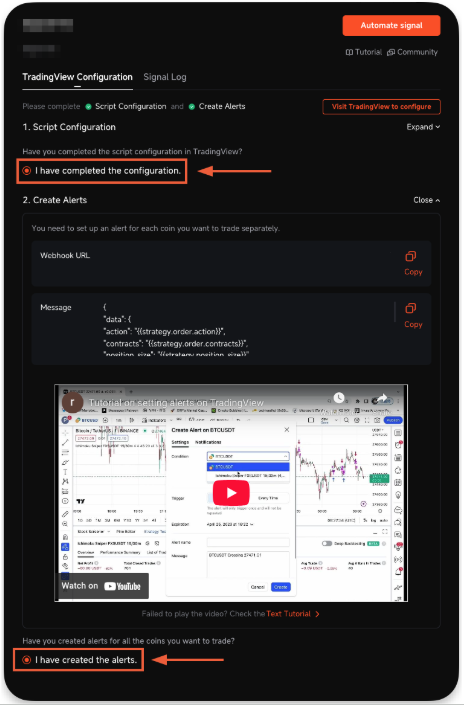
4. Once the signal has been created, directly click on the “I have completed the configuration” and “I have created the alert”
5. Signal setup on Picol has been completed.
Step 2. Add a strategy script to the TradingView chart
1. Log in to your TradingView account
2. Choose the desired trading pair, and click the “Launch chart“ button

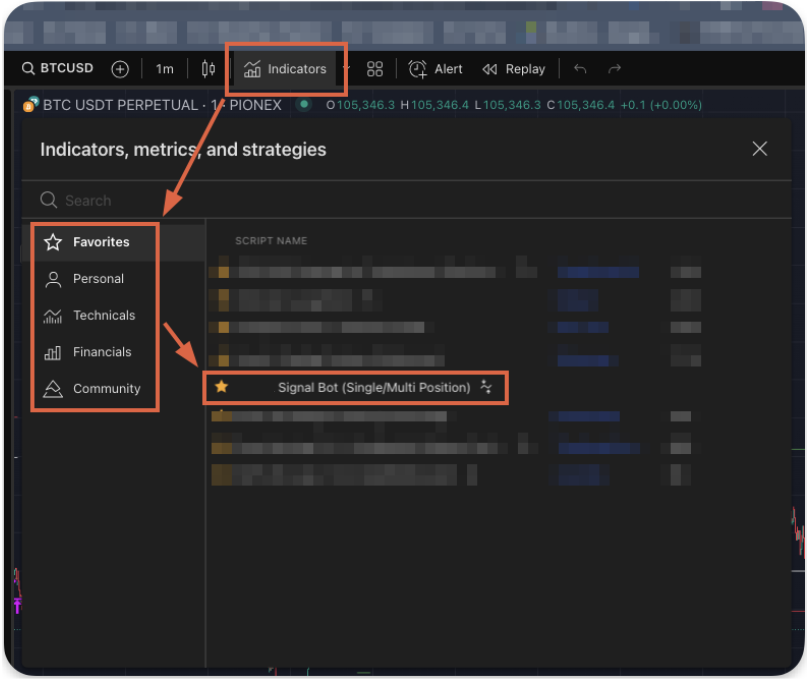
3. Click “Indicators”, select the Signal bot script you want to use
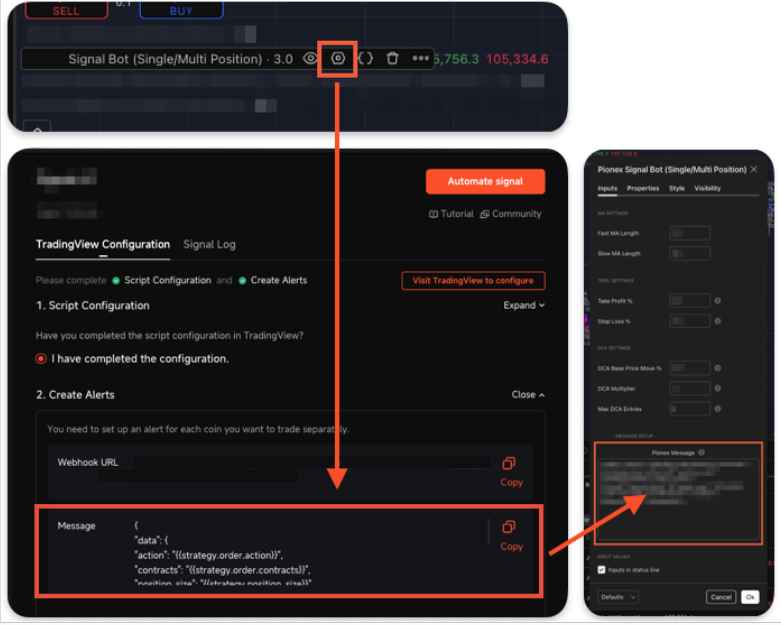
4. Click the “Gear” icon to open the strategy settings, on the “Input” tab, copy the “Message” from Picol into the “Picol Message” textbox
5. On the “Properties” settings, refer to the recommended settings as follows:
- Initial capital: Keep this value at “100”
- Base currency: Keep this value at “Default”
- Order size: 1 ~ 100 USDT. Keep the value within 1 to 100 USDT.
“50” USDT will be translated as 50% fund utilization of the Signal bot - Pyramiding: 1 ~ any value. This value is for multi-position entry settings
- Margin for long positions: Keep this value at “0”
- Margin for short positions: Keep this value at “0”
- Other parameters can be ignored as it doesn’t impact the configuration.
6. Strategy configuration in the TradingView chart has been completed.
Step 3. Configuring the strategy alert on TradingView to connect with Picol “Signal”
1. Log in to your TradingView account
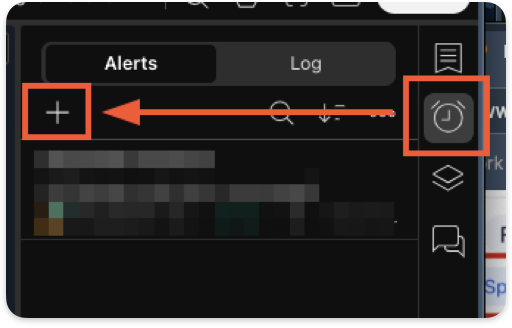
2. Click on the “Alarm” icon on the upper right corner, and click the “+” icon to create a new alert
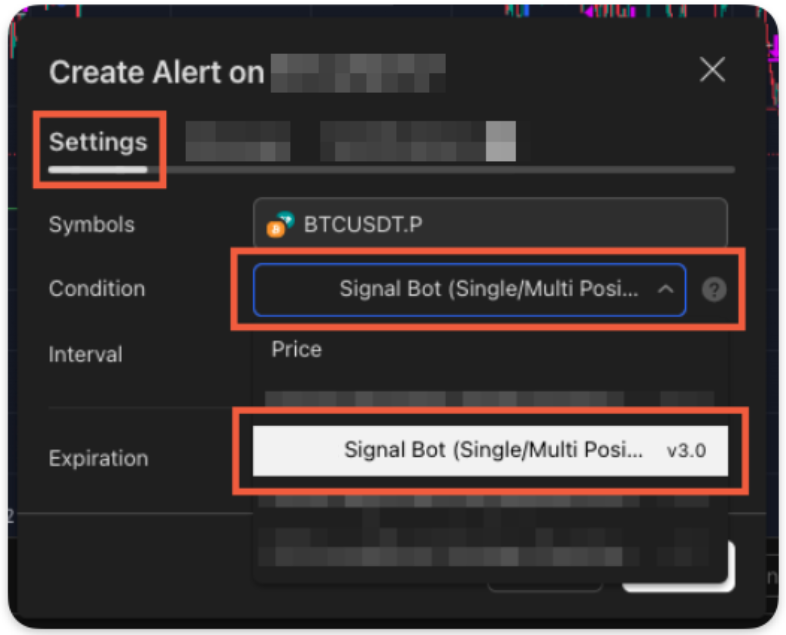
3. In the “Settings” tab, choose the desired strategy from the list.
Note: the latest configuration will be at the bottom of the list and needs to be updated every time there are changes to the strategy “Input” configuration.
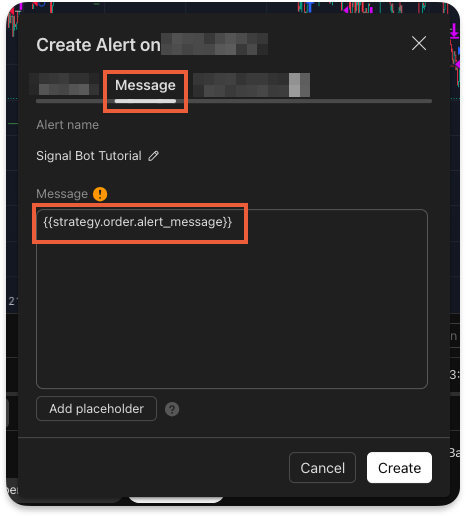
4. In the “Message” tab, keep the value unchanged as the default content.
Note: the content will produce the “Message” as a JSON code for the trading instruction.
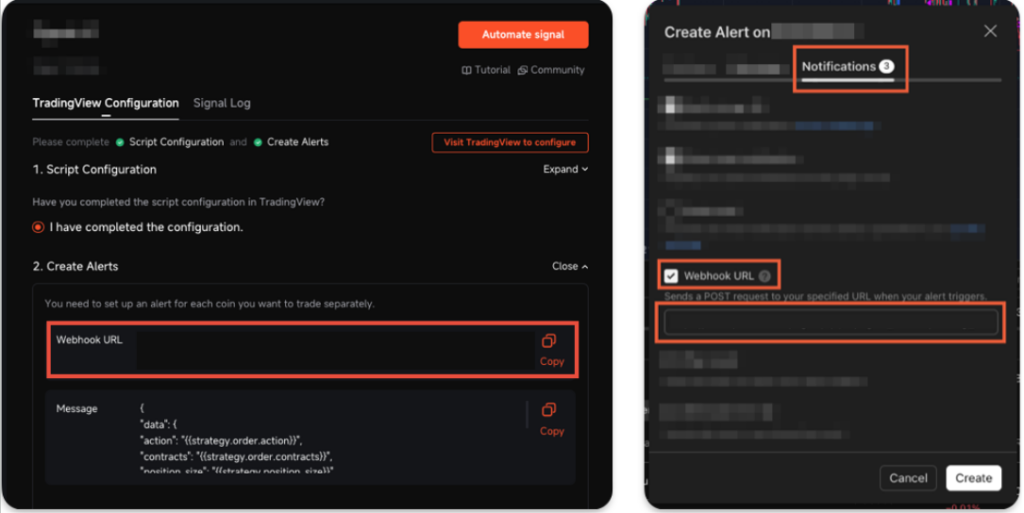
5. In the “Notification” tab, enable the “Webhook URL” and paste the “Webhook URL” from Picol into the “Webhook URL” in TradingView
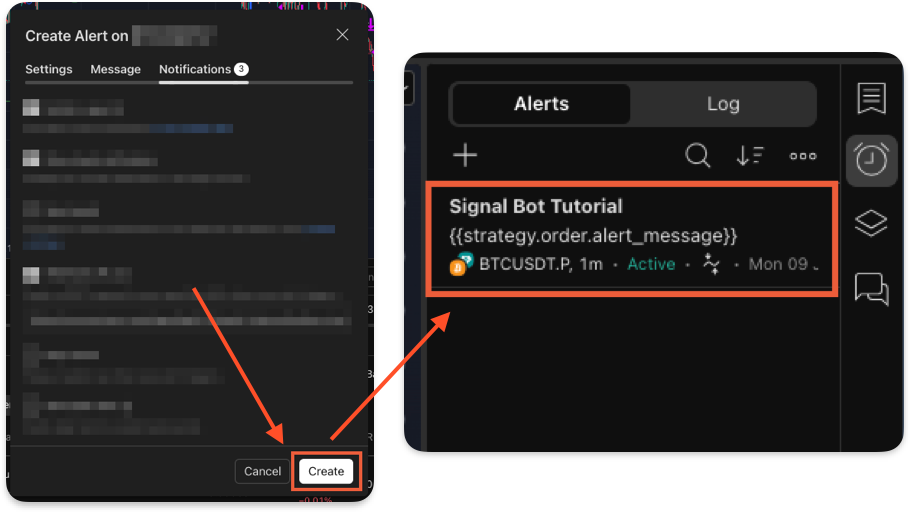
6. Click the “Create” button to complete the setup, and the alert will appear in the “Alert” list
7. Strategy Alert configuration in the TradingView chart has been completed.
Step 4. Creating the Signal bot in Picol with the linked signal from TradingView
1. Log in to your Picol account
2. Navigate to Futures → Futures Bot → Signal Bot
3. On the “Signal Bot” page, click the “Automate signal” to configure the bot settings, and then click the “Create the bot”
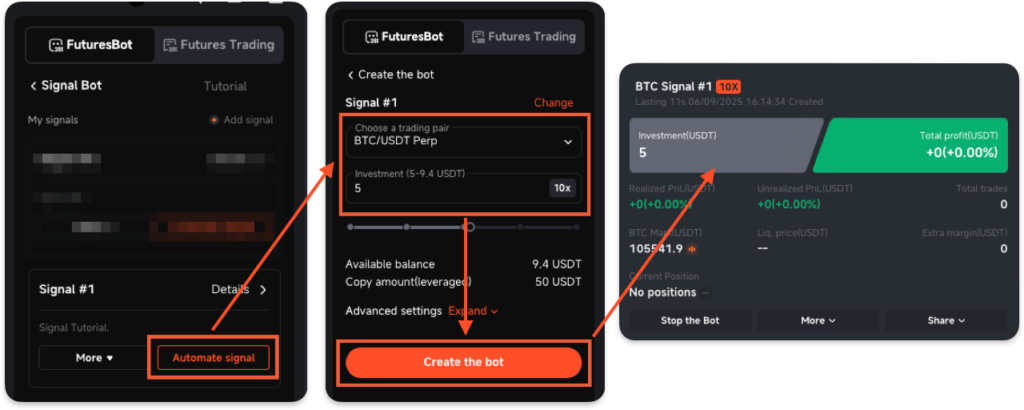
4. Creating the Signal bot in Picol has been completed.
Step 5. Checking if the TradingView signal is sent properly in Picol
1. Log in to your TradingView account (http://www.tradingview.com/chart)
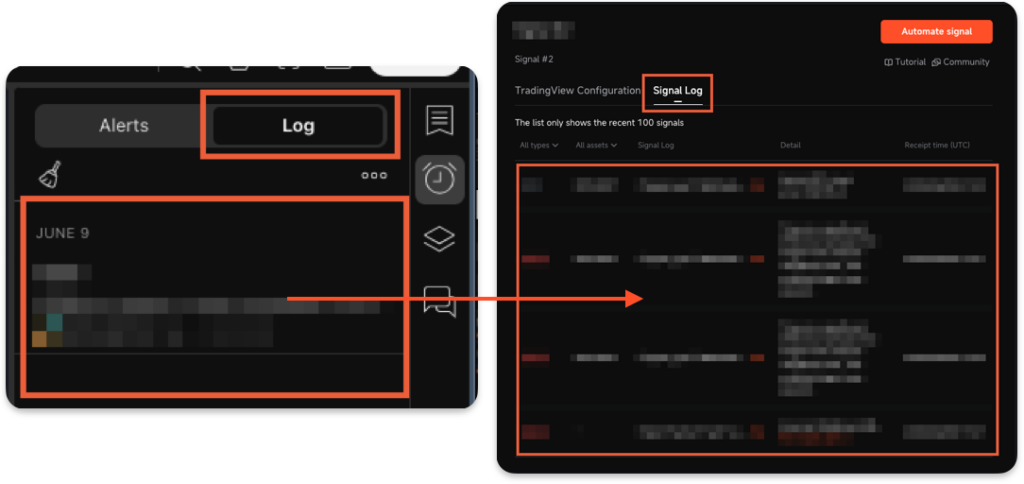
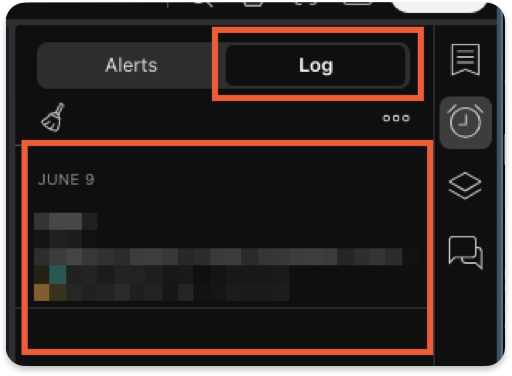
2. Click on the “Alarm” icon in the upper right corner, and click the “Log” tab to check the list
3. Log in to your Picol account
4. Click on “Details” and then navigate to the “Signal Log” tab
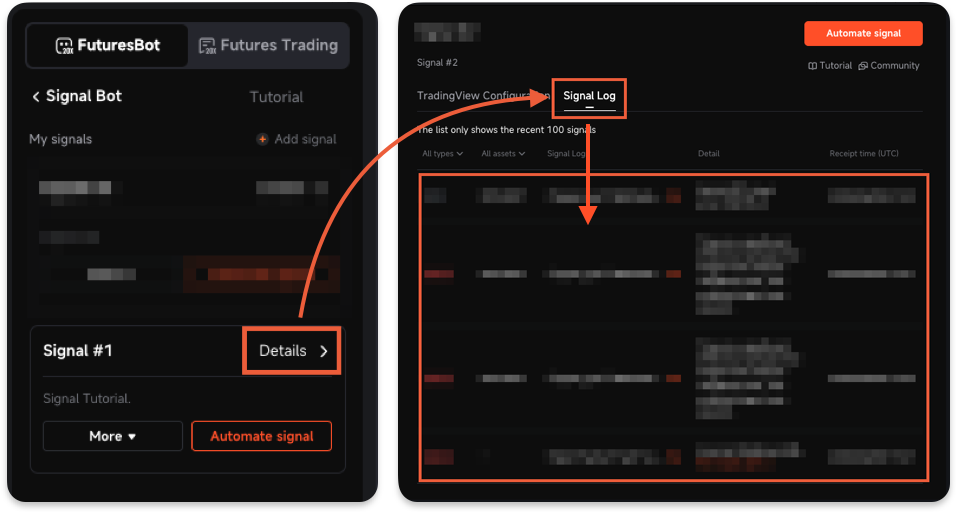
5. Compare the TradingView Alert log with the Picol Signal Log to ensure the signals are received properly